 Deagreez/Getty Images
If your Wi-Fi has been slow, unreliable, or prone to sudden drop-offs, you might be tempted to replace your router. But before you spend your money on a shiny new router, try adjusting the settings on your current one. It might be that the problem isn't the router itself, but the way it's configured.
One of the simplest changes you can make is to restore your router to its factory default settings. Only do this if, as far as you know, you haven't made any intentional changes to your Wi-Fi settings, as your customizations — including your name and password — will be lost. If you don't want to reset your router and lose all your settings, then leave it for now. But you may want to return to it later if everything else fails. Restoring factory defaults varies from router to router, but many can be reset simply by pressing the reset button on the back for about 30 seconds. If this doesn't do the trick, it's time to start making some manual changes.
You can usually access your hub's settings by typing 192.168.0.1 into the address bar of your browser and signing in. If this doesn't work, check the back of your router to see if the URL is listed there. Once you're logged in, you can adjust things like channel and band settings and check for firmware updates, which could all improve performance and give your router a new lease of life.
The channels and bands you're using might be affecting performance
 Emma Street/SlashGear
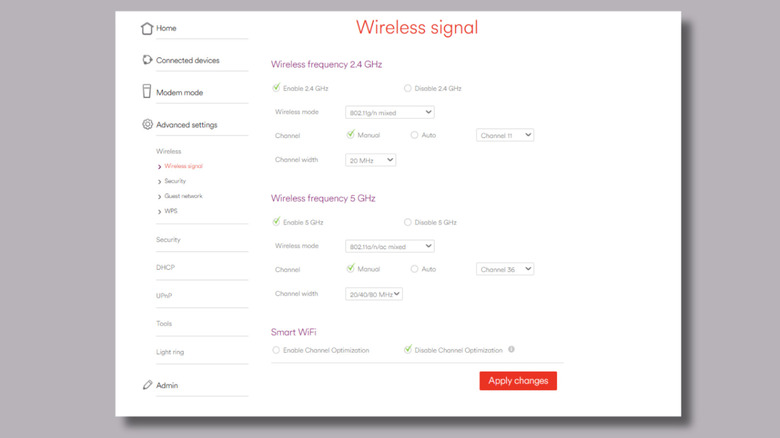
If you're experiencing problems with your internet and want to speed up your Wi-Fi, try changing the Wi-Fi channel. You can do this on your hub's settings web page. You will most likely see that your router's set to select channels automatically. This means your router periodically scans nearby Wi-Fi networks to choose what it thinks is the least congested channel. This usually works well, but sometimes your router may choose a "less busy" channel that has a lot of noise, from things like microwaves and baby monitors, because it's scanning for Wi-Fi congestion but not non-Wi-Fi interference. Try switching to manual, selecting a different channel on the list, and see if that improves performance.
It is also worth considering which wireless band you primarily use. The 2.4 GHz band offers longer range but lower speeds and tends to be saturated by IoT devices. The 5 GHz band delivers significantly faster speeds and less interference, although its range is shorter. If you have a newer router that supports Wi-Fi 6E, you may also have access to the 6 GHz band, which offers ultra-fast speeds ideal for same-room use. If you're having connection issues on one particular device — like your laptop or smart TV — check which band it's using and switch it over.
Try updating the firmware -- or moving the router to a new position
 Liudmila Chernetska/Getty Images
If you're not making sure that you're getting all the latest firmware updates, then this could be affecting your internet speeds. Manufacturers regularly release firmware updates to fix bugs, patch security vulnerabilities, and improve efficiency. Many routers update automatically – on some, there isn't even an option to manually update them in the settings. Other routers need to have firmware manually updated. To do this, start by identifying your router's exact model number and downloading the latest firmware file from the manufacturer's official website. Connect your computer to the router with an Ethernet cable, log in to the router's web interface, and navigate to the firmware or administration section. Use the upload option to select the downloaded firmware file and begin the update. Once done, allow the router to reboot before trying it out.
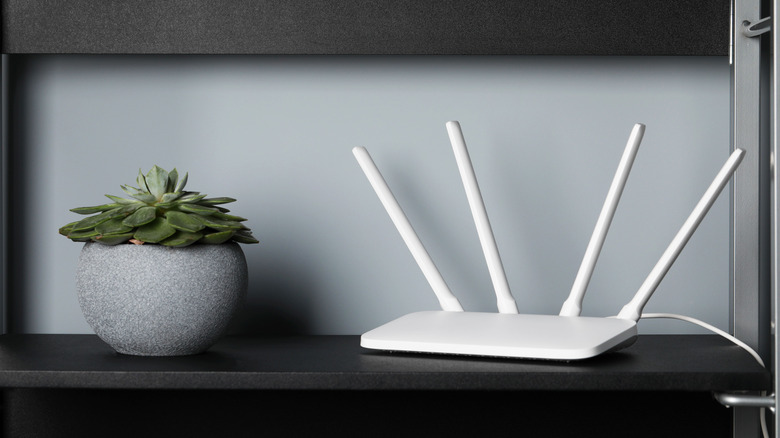
Lastly, although this isn't a setting, remember that the position of the router in your house is really important. Your router should be in a central area of your home, ideally in an elevated position like a high shelf. There are also many things in your house that might be ruining your Wi-Fi connection, including walls, windows, and fish tanks. Try moving the router to a new spot. You might find that a simple change in location means you don't need to splash out on a brand new router.